Focus: HOPE · 2020
Designing a learning dashboard for a Detroit nonprofit
MicrosoftPARTNER SHOWCASE


Smart Search is a feature in Engineering Workbench (EWB), one of Accuris's main products. It uses semantic AI search to find specific information in a document from a small sidebar. An engineer can type a plain question, like "How to test for cycle fatigue in COPVs?", and Smart Search finds the matching requirement, constraint, or specification in the standard and highlights it.
The beta designs became the base of the first customer release, and we kept changing things quickly after launch. As Senior UI/UX Designer, I led the work from problem definition through prototyping, testing, launch, and later updates. Clients included NASA, Rolls-Royce, and BAE Systems.
Goals:
EWB holds the world's largest collection of engineering standards, codes, regulations, and technical knowledge: over 2.8M standards used by 900K people. With that much material, finding one specific detail inside a document can be hard.
Build Smart Search as a compact tool inside EWB's document viewer that helps users break a document down into its requirements and move between them.
The work happened in stages, but development moved fast, so the stages overlapped and rarely went in order.
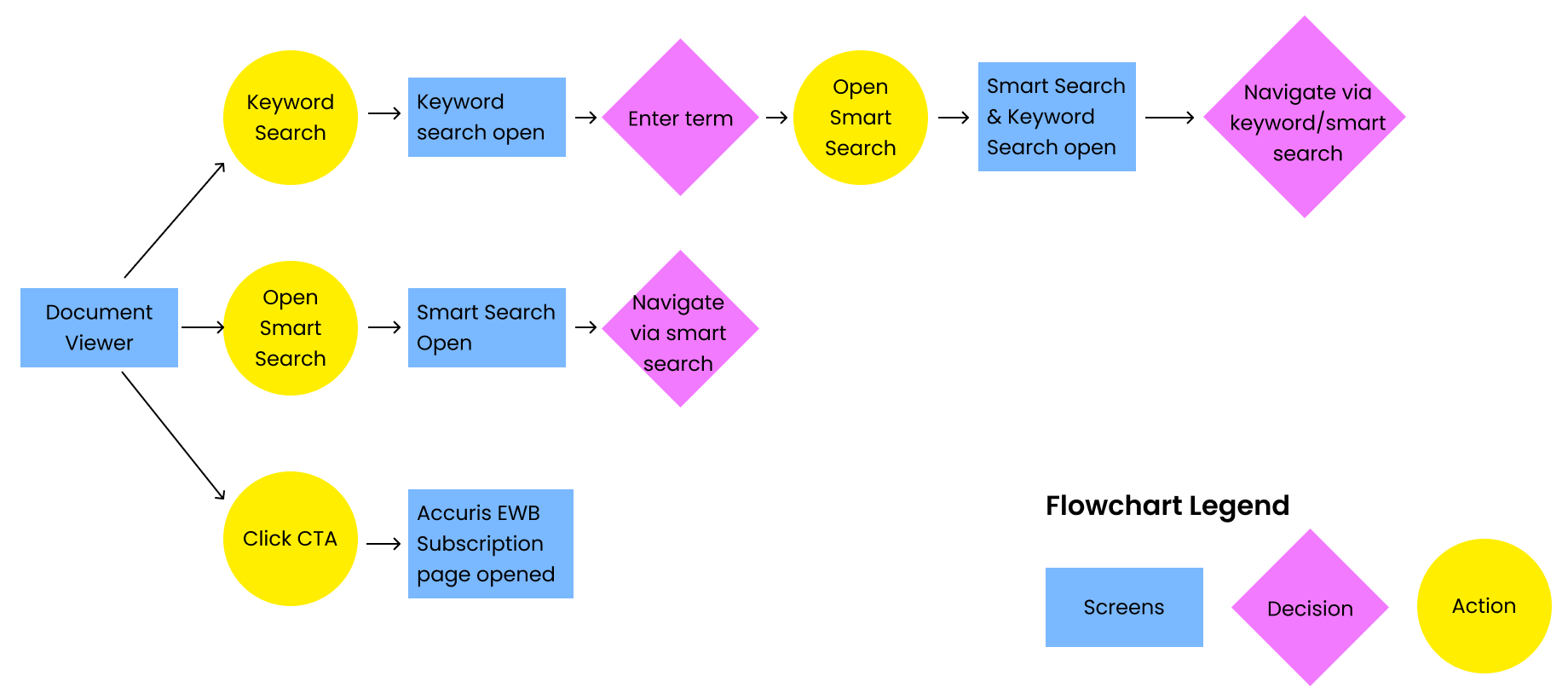
A simplified flow of the screens and actions involved. From the Document Viewer, users can open keyword search, open Smart Search, or follow the subscription prompt. Keyword search and Smart Search can be open at the same time.
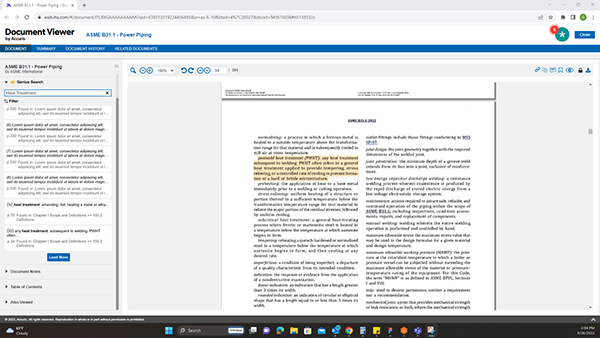
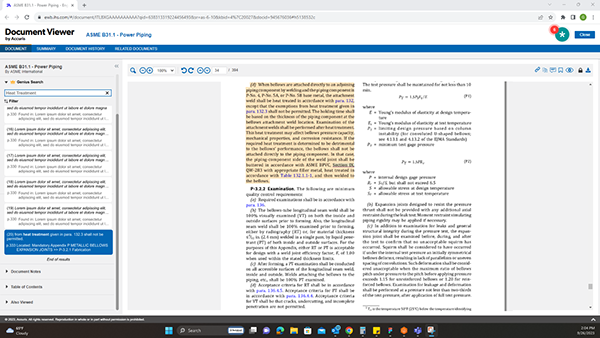
These designs are retired now, but they were the base of the first customer release. User interviews showed us how engineers work and what they need. Moderated usability tests, remote and in person and built around real tasks, guided each round of changes.
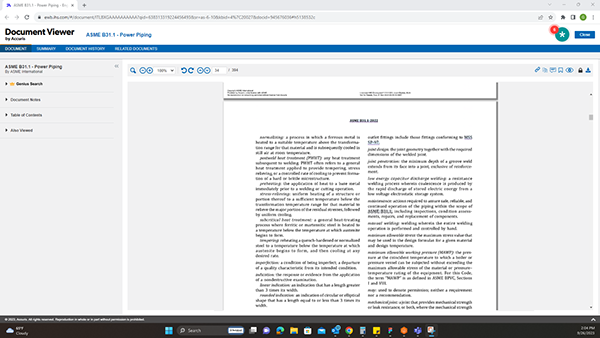
Smart Search sits in the existing Document Viewer as a collapsible sidebar section. Users without a subscription see a prompt that takes them to the EWB subscription page.
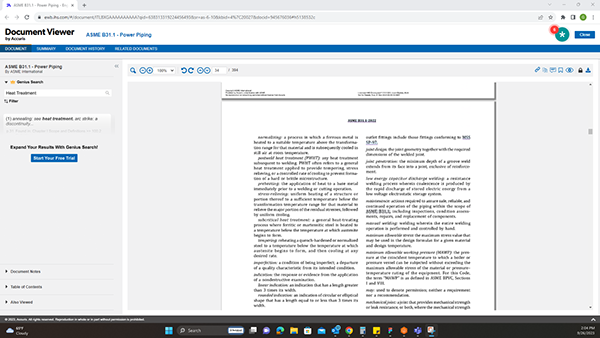
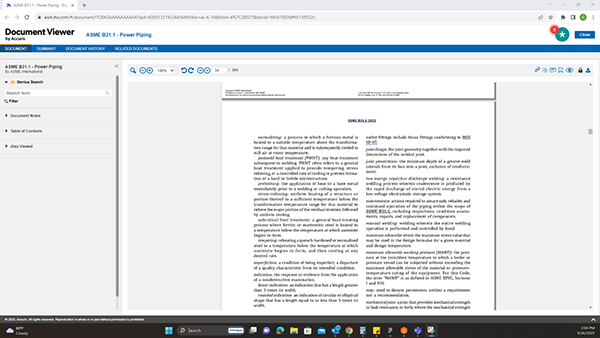
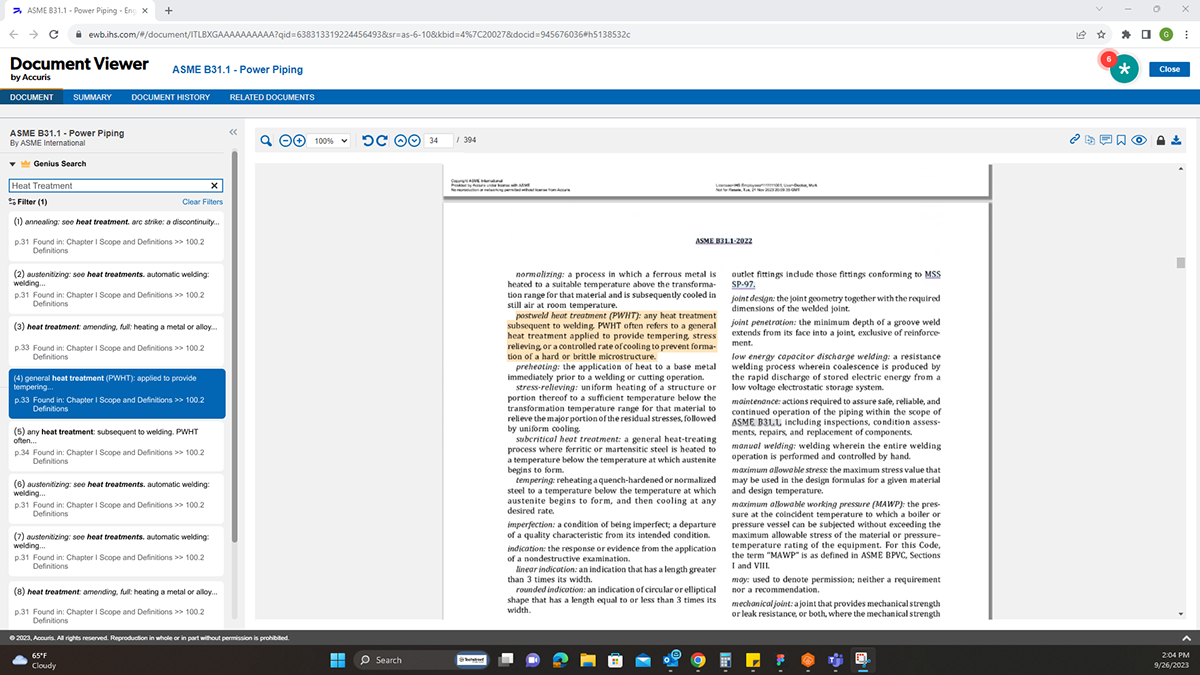
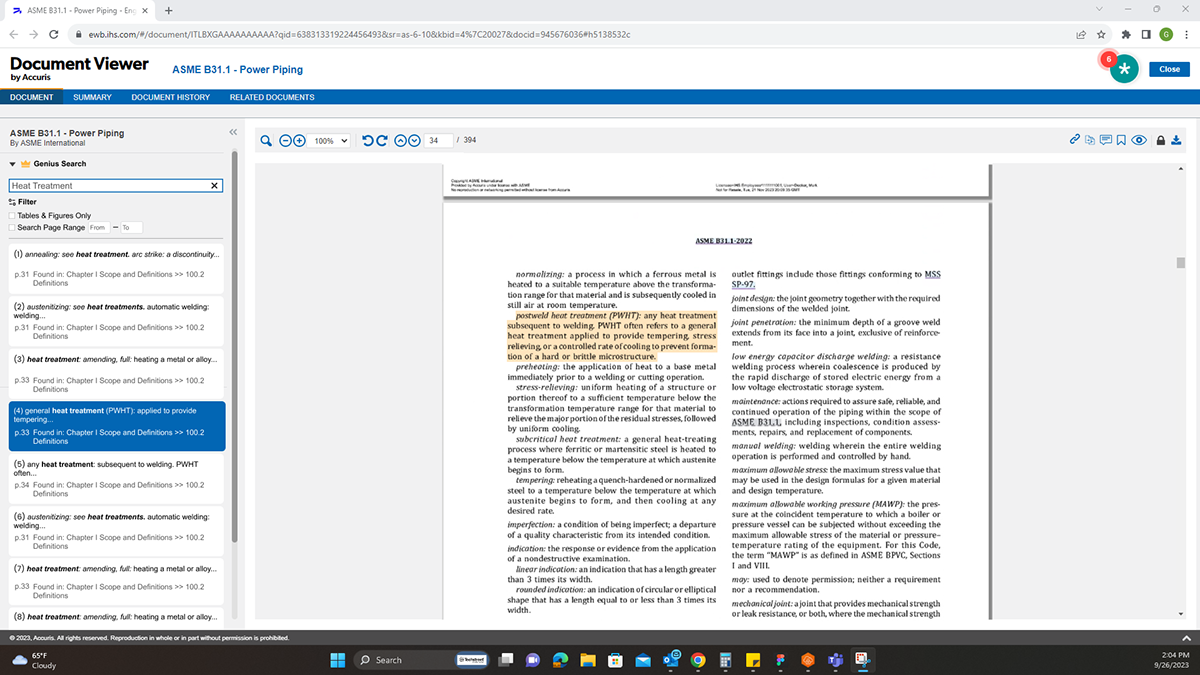
As a user types, matching requirements appear in the sidebar with their page and section, and the selected one is highlighted in the document. There are a lot of results and some technical limits, so the list uses a Load More button.
Filters narrow results by format (only tables and figures, for example) and by page range.
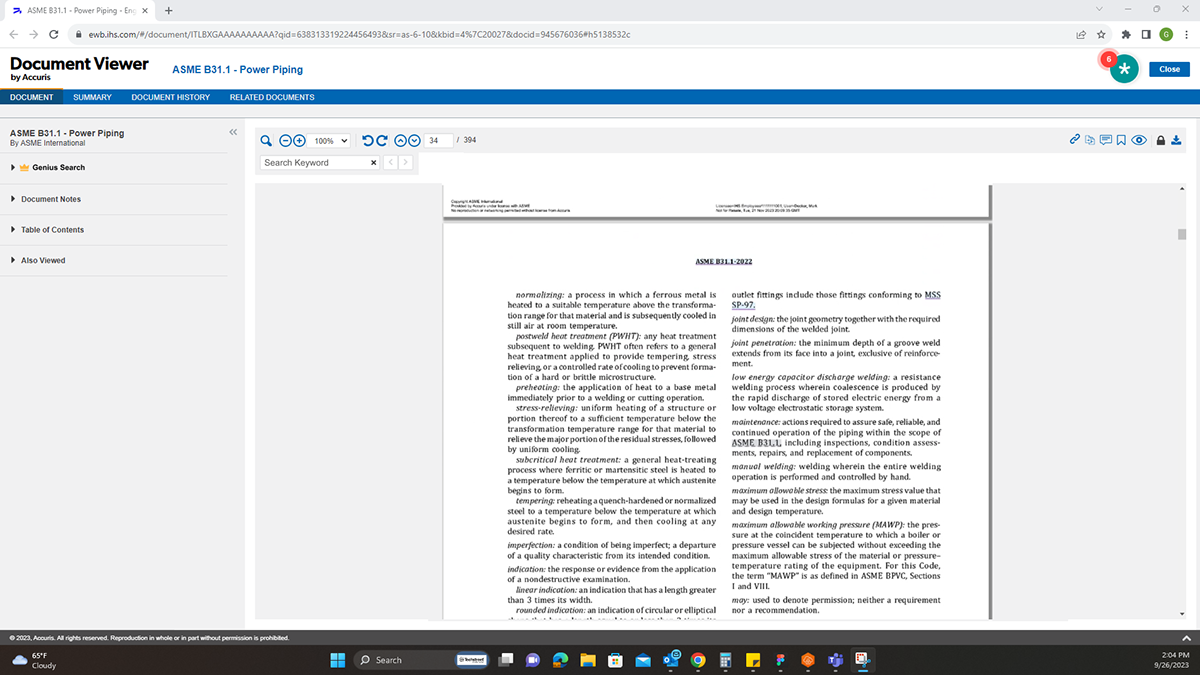
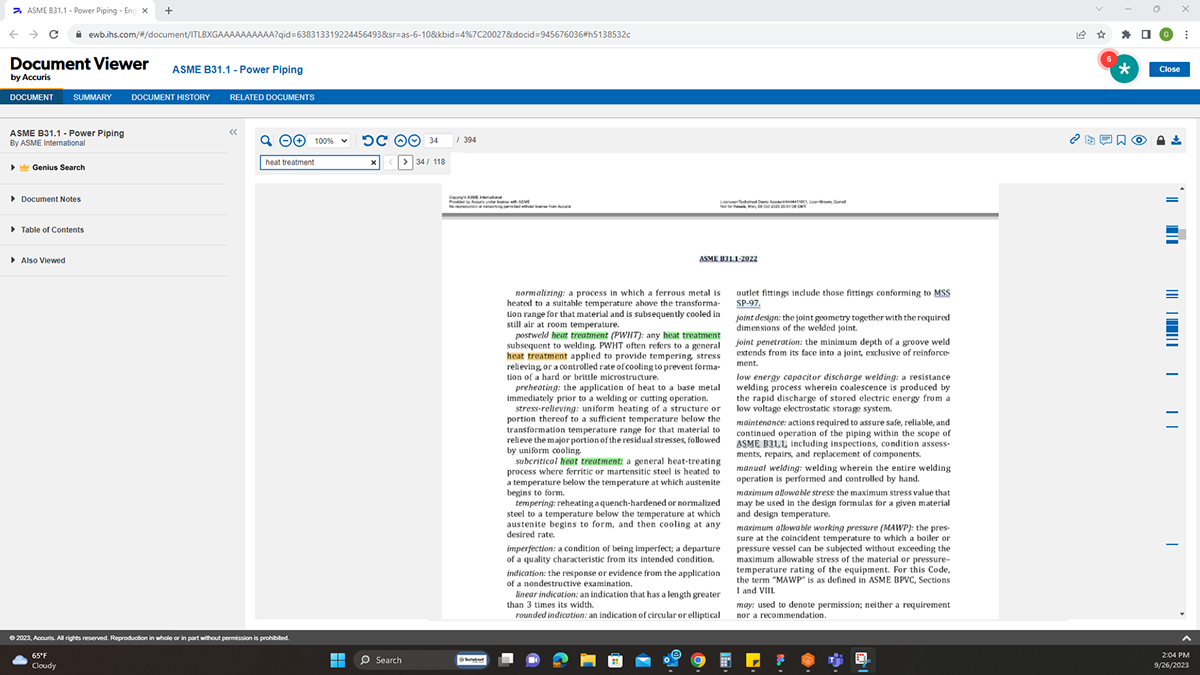
We changed keyword search so it works next to Smart Search. A keyboard shortcut opens it, arrow keys move between matches, and matches are highlighted in the document: yellow for the current one, green for the others.
Both searches can stay open, so users can switch between semantic results in the sidebar and exact matches in the document without losing their place.
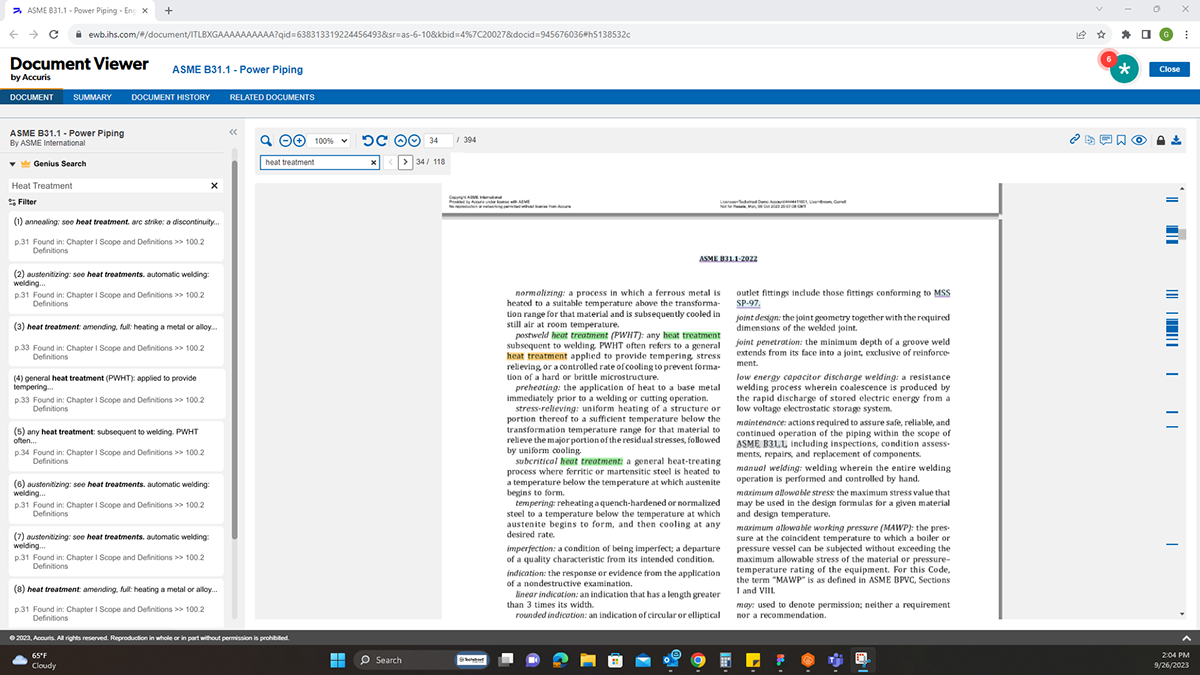
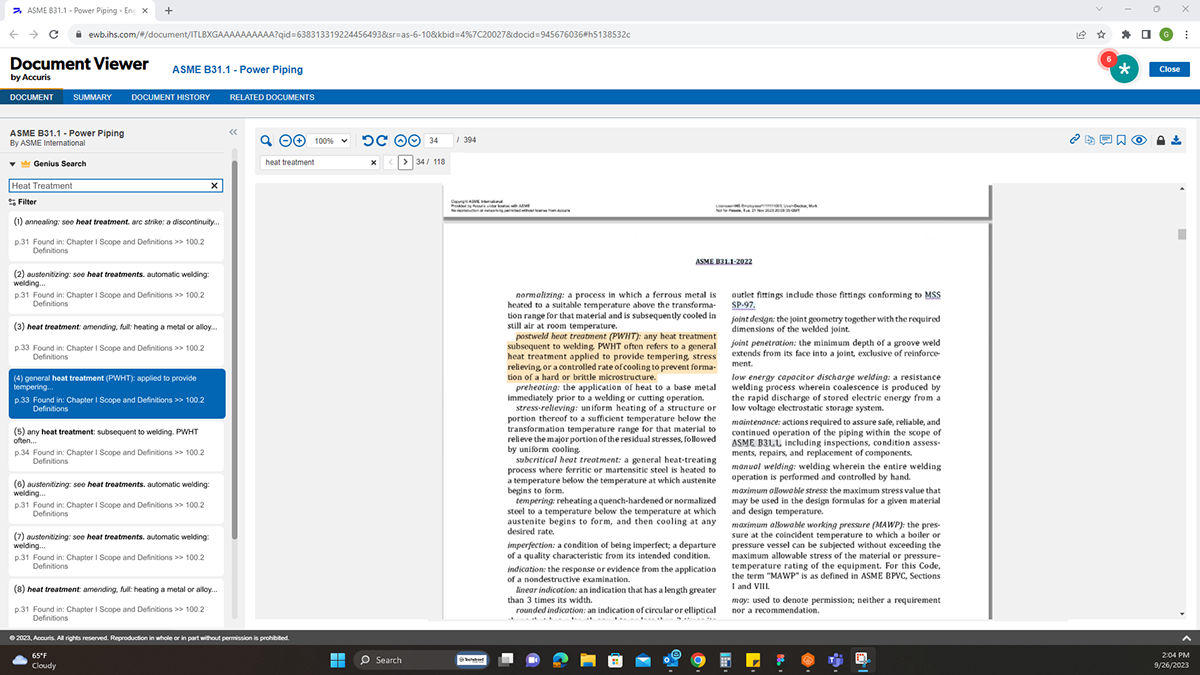
Smart Search launched as a headline feature of Engineering Workbench Professional. We kept improving it after launch, using task-based usability tests and VPAT accessibility audits.